
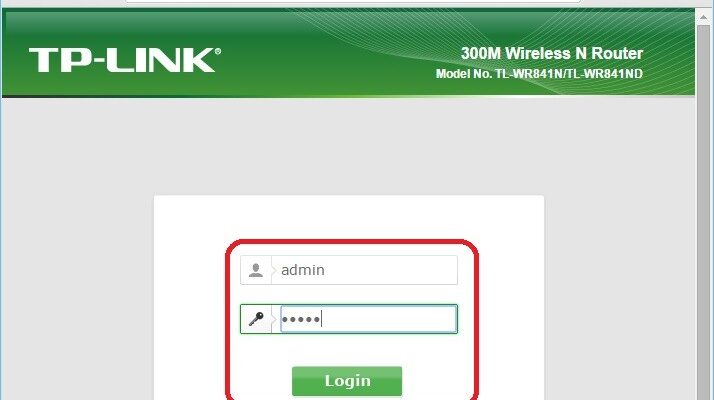
It is quite important, after installing a Wi-Fi router at home or in the office, to protect not only the Wi-Fi network, but also access to the administration panel. This article will deal with configuration of the security settings for access to the TP-Link router settings. To begin with, we will change the default administration password, which is used to enter the TP-Link administration panel, with a much stronger one, and therefore we will allow access to a single computer (filtering by Mac).
The weak protection (or lack of) of the administration panel, together with the weak protection of the Wi-Fi network, allows practically access to the router settings. For example, you gave the password from the Wi-Fi to the neighbor. By connecting to the network, it can get access to the router settings (if not protected). Obviously we don’t need it.
From what I saw on the internet, very few users protect the administrative panel, which is a big mistake. The setting to protect access to the administration panel requires several minutes.
Since the routers of the TP-Link company have practically the same administrative interface, this article can be called universal for routers in this company. The article will adapt to popular models such as: TL-WR940N, TL-WR841N, TL-WR842nd, TD-W8960N, TL-MR3420, TL-WR741nd, TD-W8968, TL-WR843nd, TL-WR1043nd.
We protect the TP-Link router administration panel with a password
This is the first thing to do. In fact, the modification of the password is still recommended in the router configuration process.
We insert the settings. The procedure is a standard: we connect to the Wi-Fi network from the router or via cable. We enter the address in the browser 192.168.1.1If it doesn’t work, we enter 192.168.0.1. We enter username / password, by default – administrator AND administrator.
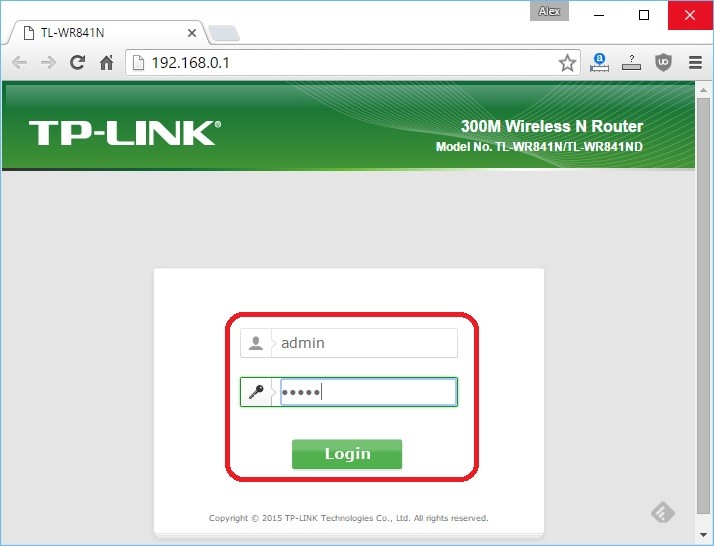
In Settings access the card System tools – Password. On the field Old username AND Old Password Enter the old password and the username, respectively. By default are administrators and administrators (if you haven’t changed them yet).
On the field New username Enter the new username, which will be used to enter the settings (you can leave the administrator). On the field New Password AND Confirm new password Enter the new password, which you will enter during access to the router settings.
Notate your new password and username. Note on a document or computer document.
Immediately after pressing the Save button, the request will seem to enter the username and password. Enter the new data to access the settings.
Ok, the password we have changed, now we have to block access to the settings for any computer, with the exception of your computer. Or, two – three computers, depending on the need.
We allow access to the settings only a computer (via Mac address)
Most likely you have a single computer, from which the router settings are created. Now only for this computer we will allow access to the router settings and for other computers, we will prohibit access. When someone wants to get access to the settings from 192.168.0.1 or 192.168.1.1, he will see an error.
Create these settings on your computer, you want to allow. Open the card Safety – Local management.
Activate the point «Only listed PCs can navigate …«Press the»Add«In the field Mac 1 The Mac address of your computer will appear, from which the settings are now made. This means that only this computer will have the opportunity to access the TP-Link router settings. In the Mac 2 field, Mac 3, Mac 4 you can insert the Mac addresses of the devices, for which you want to allow access to the router settings.
To save the settings Press the button Save.
I finished! You can take another device, which is connected to the internet through your network and try to access the settings. You will see a mistake. Now you will be able to configure the router only on the computer, to which you have allowed access.
latest posts published

Lokky, the Italian data driven insurtech for professionals and SMEs
An ally for cyber security: Load Balancing
Business Trend 2023 for SMEs, professionals and commercial activities
Occupational risks for pastry shops
How to read a pay slip
What are the most common cyber risks and how to protect yourself
Clinical Risk: What it is and What are the consequences
Commercial activities most affected by theft
October is European Cyber Security Month